4.6.1. User Details
When clicking on a username, you can see the users details and perform several actions on the user.
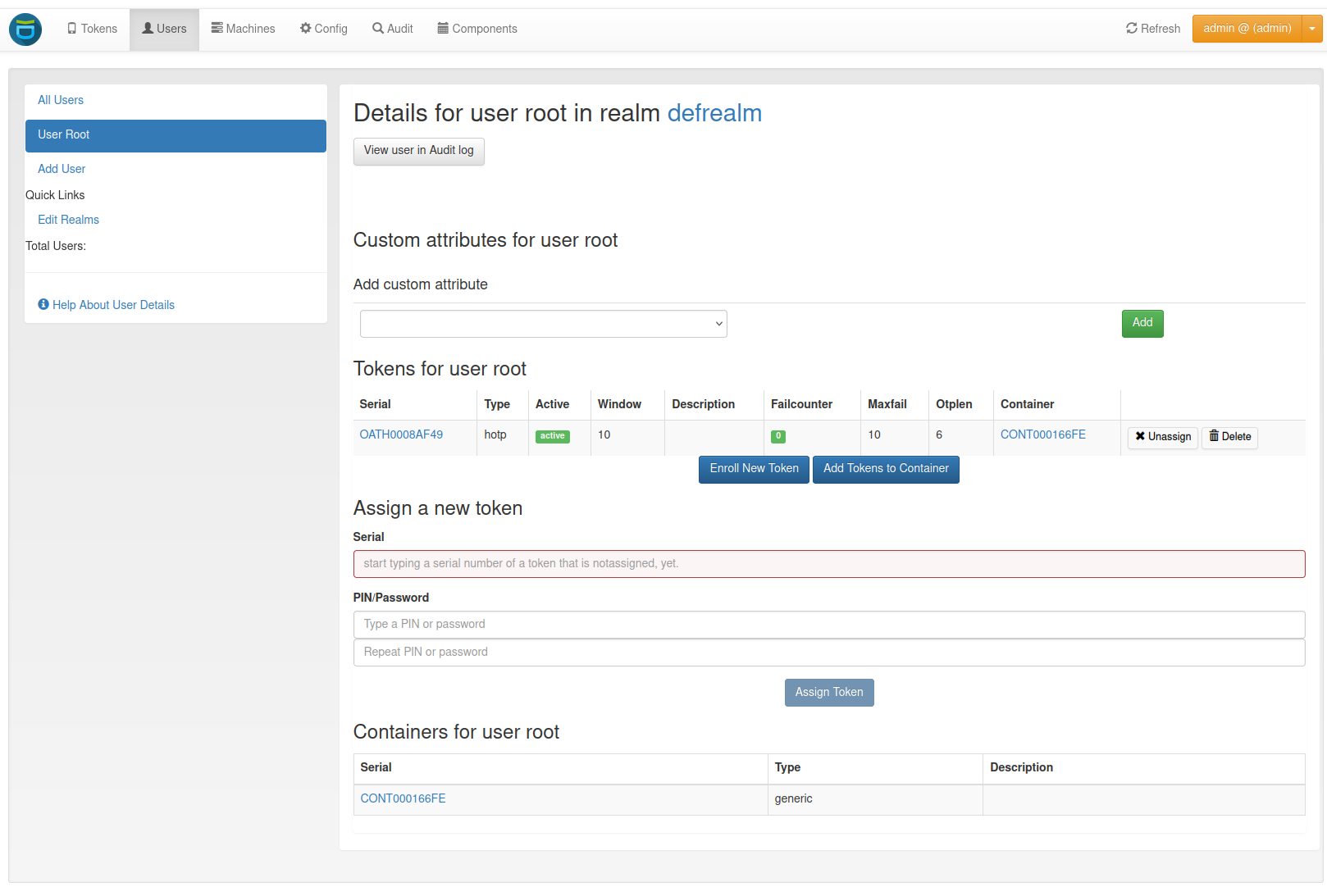
User Details.
You see a list of the users tokens and change to the Functionality of the Tokens view. On the bottom, a list of the user’s containers is displayed. You can click on the serial to change to the container details (Containers).
4.6.1.1. Enable and Disable Tokens
A token can be enabled or disabled by clicking on the active or rather disable label.
4.6.1.2. Reset Failcounter
To reset the failcounter of a token, click on the number in the failcounter column.
4.6.1.3. Unassign Tokens
To unassign the user from a token click on the unassign button in the token’s row.
4.6.1.4. Delete Tokens
A token can be deleted by clicking on the delete button in the token’s row. You will be asked if you are sure you want to delete the token. Confirm and the token will be deleted.
4.6.1.5. Enroll tokens
In the users details view you can enroll additional tokens to the user. In the enrollment dialog the user will be selected and you only need to choose what tokentype you wish to enroll for this user.
4.6.1.6. Add tokens to container
You can also add tokens to a container from the users details view. Select the checkboxes for the tokens you want to add. Either create a new container or select one from the drop-down list.
4.6.1.7. Assign tokens
You can assign a new, already existing token to the user. Just start typing the token serial number. The system will search for tokens, that are not assigned yet and present you a list to choose from.
4.6.1.8. View Audit Log
You can also click View user in Audit log which will take you to the Audit log with a filter on this very user, so that you will only see audit entries regarding this user.
4.6.1.9. Edit user
If the user is located in a resolver, that is marked as editable, the administrator will also see a button “Edit User”. To read more about this, see Manage Users.